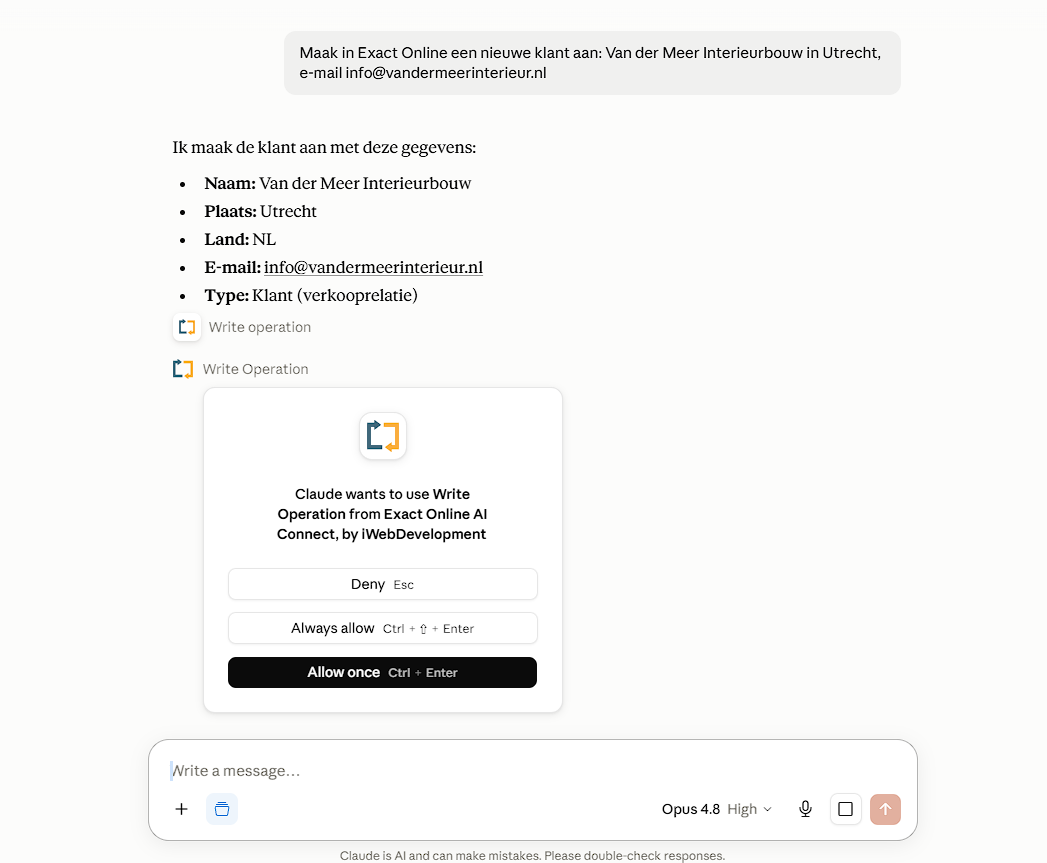
Your AI assistant can do more than just look along. It can prepare and update invoices, bookings and contacts for you. The difference with retrieving data: for a write action a draft is prepared first that you check and approve. So nothing ever changes in your administration without your consent.
Read and act
Most questions you ask your administration only read: you look something up or have something analysed, and nothing changes. But you can also have the connector create or adjust something, such as a sales invoice, an entry or a new relation. We call that a write action.
The difference is in the control. The assistant does not simply carry out a write action. First it prepares a draft that you review and approve. Only then is it recorded in Exact Online.
Nothing ever changes in your administration without you having seen and approved it first. You always take the final step.
How a draft action works
From your question to a recorded entry, you go through the same four steps every time:
1You ask it in plain language. For example: "Create a sales invoice for customer Janssen BV."
2The assistant prepares a draft. You see exactly what will be recorded: which customer, which lines, which amounts.
3You check it. Is it correct? Then you approve it. Is something wrong? Then you adjust it or reject it.
4Only after your approval is it recorded. The draft is booked definitively in Exact Online.
The assistant prepares the action as a draft. You decide whether to deny it, allow it once or have it carried out directly from now on.
What you can have created or modified
Below are examples of write actions per topic. You can copy them literally or adjust them to your own customers, articles and amounts. Each of these actions is first prepared as a draft that you approve.
Bookings
"Create a new purchase entry."
Prepares a purchase entry that you approve yourself.
"Create a bank entry for my credit card statement."
Processes your credit card statement into an entry that you approve.
"Post this purchase invoice to general ledger account 4400."
Prepares a purchase entry on the general ledger account you choose.
"Correct the last bank entry from today."
Prepares a correction entry that you approve.
Customers and suppliers
"Add a delivery address to Janssen BV: Industrieweg 5, Rotterdam."
Records an extra address for a relation.
"Set customer Janssen BV to a payment term of 30 days."
Changes the payment condition of a relation.
"Create a new supplier with name and address details."
Sets up a new supplier in Exact Online.
"Update the email address of customer De Vries to info@devries.nl."
Changes the contact details of a relation.
Sales and purchase orders
"Create a new sales invoice for customer Janssen BV."
Prepares a sales invoice for you to approve yourself.
"Adjust the quote for De Vries and add item A1001."
Updates an existing quote with an extra line.
"Turn an accepted quote into a sales order."
Converts the quote into an order in one go.
"Create a new purchase order with supplier Metaalhandel Bakker."
Prepares a purchase order for you to approve yourself.
Stock and warehouse
"Create a new item: code SCH-M10, description Screw M10x30."
Records a new item in Exact Online.
"Set the minimum stock of item A1001 to 250 in the Amsterdam warehouse."
Changes the minimum stock per warehouse.
"Change the sales price of item A1001 to 24.95."
Changes the sales price of an item.
"Book a stock correction for item A1001: remove 5 units due to breakage."
Prepares a stock adjustment for you to approve.
Tip: you can also combine retrieving and creating in one request, for example "Check the minimum stock and prepare the purchase orders for any shortfall." The assistant runs the check and prepares the orders as drafts.
You stay in control
With every write action you decide what happens. A draft is exactly that: a proposal that only counts once you give your approval.
Approve
Is the draft correct? With your approval it is recorded in Exact Online.
Adjust
Is something off? Ask for a change and the assistant creates a new draft.
Reject
Changed your mind? Then you reject it and nothing is recorded.
In your control panel the activity logs show you exactly what was created or changed, and when. You also set what users are allowed to do there: you can determine per user which actions are permitted. You can read more about how we handle your data and permissions in working safely with AI Connect.
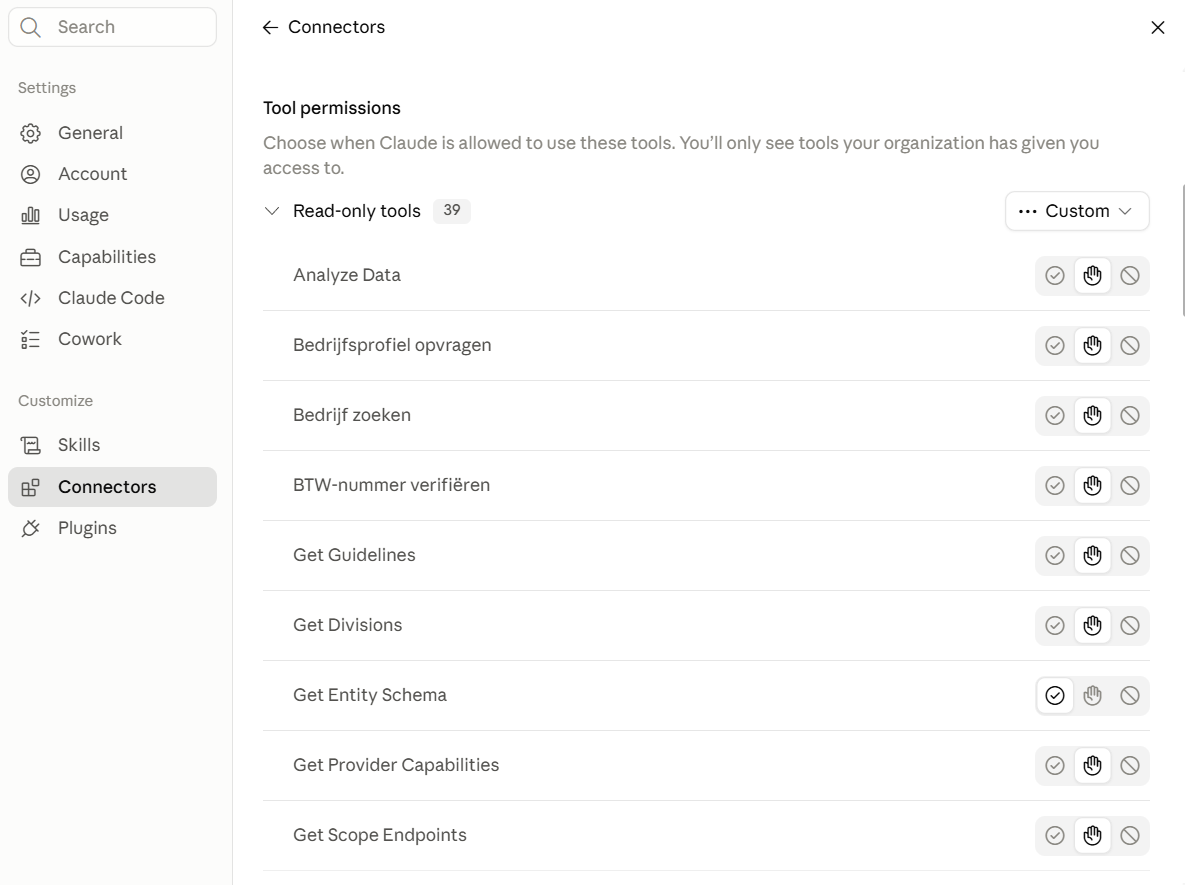
You also decide in your AI assistant itself how much freedom it gets. As you can see below, you choose per action whether to refuse it, allow it once or let it run directly from now on. That way you decide for yourself whether you are asked for approval at every step or only for the actions that really matter.
Per action you choose for yourself how much freedom the assistant gets: refuse, allow once or let it run directly from now on.
Good to know: the connector is built so that the assistant never posts anything definitively on its own. Every write action waits for your approval.
No Exact AI Connect yet?
Connect your Exact Online administration to your AI assistant and ask your first question within a few minutes. You stay in control of every action.
No. For a write action, the assistant always prepares a draft first. Only after you have approved it does it get recorded in Exact Online.
Yes. Simply ask for a change, for example a different amount or an extra line, and the assistant creates an updated draft that you can review again.
Then nothing is recorded. A rejected draft changes nothing in your administration.
Yes. In your control panel you can see in the activity logs exactly which actions were carried out and when.
Yes. In your control panel you decide per user which actions are allowed, so write actions stay limited to those who may perform them.
Then you simply do not approve it. Because every write action is prepared as a draft first, nothing ever ends up wrong in your administration without you having seen it.







.png)









.png?width=46&height=46&name=vecteezy_artificial-intelligence-ai-processor-chip-vector-icon-symbol_6662139%20(1).png)