





.png)








Booking purchase invoices automatically in Exact Online: here's how it works
Forward your purchase invoices to a dedicated email address. AI reads them, checks them and creates the booking proposal. You approve what needs attention, the rest is booked automatically in Exact Online.
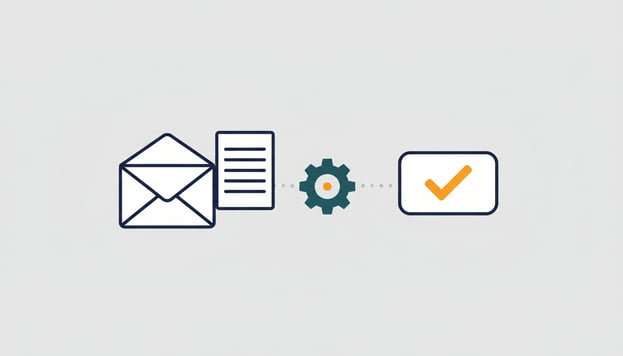
A purchase invoice quickly costs you three to five minutes in Exact Online. Open it, look up the supplier, retype amounts, choose a VAT code, choose a general ledger account, attach the pdf, save. At fifty invoices a month that adds up to half a working day, and you haven't checked anything yet. Since this autumn things can be done differently: you forward the invoice by email, AI reads it, checks it and prepares the booking proposal. You approve what needs attention, the rest is booked automatically. In this article I walk you through the entire chain, from mailbox to booking, including what it costs and what it is not meant for.
Step 1: the invoice arrives
Every administration gets its own email address. Invoices that come in there are picked up straight away, whether you forward them from your own mailbox or leave the address with your suppliers. Do you have an invoice as a file on your desktop? Then you can also supply it through your AI assistant: "here is an invoice from our cleaner, process it in administration X".
The module reads two types of invoice. Pdf's, because that is what most suppliers still send. And structured e-invoices in UBL, the format exchanged through Peppol that becomes the standard for business invoices in the Netherlands from 2030. With a UBL file nothing needs to be read; the data is already in there.
Step 2: AI reads the invoice and finds the supplier
From the pdf AI extracts what a bookkeeper would also extract: supplier, invoice number, invoice date, due date, the lines, the VAT per line, the total and the service period if it is stated. The supplier is then looked up in your Exact administration, by name, VAT number, Chamber of Commerce number and IBAN. If it matches, the invoice is attached to the correct creditor. If the match is in doubt, it is not guessed but put to you, with the candidates included.
That last point is a deliberate choice. Attaching an invoice to the wrong creditor is the mistake you discover last, usually only when a payment reminder arrives.
Step 3: the checks
Before a booking proposal appears, every invoice passes a row of checks. This is the part where the module really differs from a simple scan-and-recognise function:
- Calculation. Does the subtotal plus VAT match the total? A rounded line or a misread figure stands out immediately here.
- Duplicate invoice. Has this exact file been processed before? Is the same invoice number from the same supplier already in Exact? Is there an invoice with the same amount and the same date? Across your other administrations too.
- Account number. Does the IBAN on the invoice differ from what you know for this supplier? That is the classic signal of invoice fraud, and precisely the check most invoice processors skip.
- VAT. Does the VAT code match the percentage and the country of the supplier? Is there an EU supplier with reverse-charge VAT? Then the VAT number is checked live against VIES and the reverse-charge code is set correctly in advance.
- Date and period. Is the invoice date plausible, and is there a service period from and to? That last one goes along to Exact, which then spreads the costs across the months itself.
A check that fails does not block the invoice straight away. Most give a warning that you see in the overview; only a demonstrably duplicate invoice is held back until someone releases it.
Step 4: the booking proposal
For each line, AI proposes a general ledger account, a VAT code and, where applicable, a cost centre or cost unit, with the reason alongside. That proposal gets smarter the more you book: once you have assigned a supplier to an account, that becomes the starting point next time.
If you want to record something, you do so in plain English. "Invoices from our telecom supplier go to 4530 Telephone, high VAT" is enough; the module translates that into a rule it applies from then on. No decision tree, no settings screen with ten tabs.
Step 5: approve and book
Here you decide how much you want to see yourself. You set a scale per amount: invoices below a threshold are booked automatically by the module once all checks are green, above that it asks for approval, and above a second limit for a second approval. Approving can be done with one click from the email, so your approver does not have to log in anywhere. If an invoice stays pending too long, it moves on to the next approver.
After approval, a normal purchase booking appears in Exact Online, with the pdf attached. No separate archive, no intermediate layer: it sits in your administration just as you would have entered it yourself.
Try and cancel
The Purchase Invoices module works within Exact AI Connect and is currently only available for Exact Online. You try it free for 30 days and cancel monthly; the current price is on the product page.
Benefits and points to consider
The benefits are clear: no retyping, checks you would never do consistently yourself, and an approval route that does not depend on who happens to be in the office.
Be honest about the limits. The module reads invoices, not fuel card receipts. It books in Exact Online and not in Twinfield or AFAS. A supplier that is not yet in your administration is not created silently; that choice stays with you. And AI does not read a poorly scanned pdf any better than a person does: a skewed photo of an invoice comes back to you with a request for a better copy. We think that is wiser than a guess that looks right.
How to get started
You activate the module in your account under Modules, choose the administration and receive your email address. Send it three invoices you had to book anyway, and look at the proposals. Usually that is enough to know whether it suits you.
Want to try it yourself? Start free with Exact AI Connect →
Try these questions in your own AI assistant
- "Which purchase invoices are waiting for my approval, and why were they not booked automatically?"
- "Show the invoices where the supplier's account number has changed."
- "Book this invoice from our hosting provider to the same account as last month."
- "Which suppliers sent more than three invoices this month?"
Frequently asked questions
Every administration gets its own email address. Invoices you forward there, or that suppliers send directly, are picked up automatically. You can also submit a single file through your AI assistant. The module reads PDFs and UBL invoices (Peppol).
Only if you set it up that way. You decide per amount what may be booked automatically once all checks are green, and above which amount an approval is needed. By default the module asks for approval; you switch on automatic booking yourself.
Whether the amounts add up, whether the invoice has already been processed before (also in Exact itself and in your other administrations), whether the supplier's account number has changed, whether the VAT code matches the country and the percentage, and with reverse-charge VAT whether the VAT number is valid in VIES.
Yes, 30 days free, after that cancellable monthly. The module works within Exact AI Connect and is only available for Exact Online; the current price is listed on the product page.
Not yet. The Purchase Invoices module currently books only in Exact Online. The separate checks on VAT numbers and Chamber of Commerce data are available in the Twinfield and AFAS connectors.