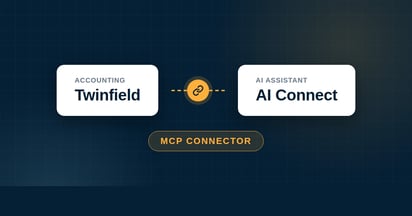
Connect your Twinfield administration to Microsoft Copilot and ask your bookkeeping questions in plain language. In Copilot Studio you build an agent that pulls your figures straight from Twinfield and, after your approval, also prepares actions.
Do you want to connect Twinfield with Microsoft Copilot? Through Copilot Studio you build an agent that can query and update your Twinfield administration. Once the connector is in place, you ask a question and get an answer from your current Twinfield data.
Below you go step by step through how to connect Copilot with Twinfield, what you can do with it and what to look out for. Are you looking for the explanation about the connector itself, separate from a tool? You will find it in How does the Twinfield AI Connect connector work?
Does Copilot work with Twinfield?
Yes. Copilot works with Twinfield through Twinfield AI Connect, a connector based on MCP (Model Context Protocol). With that protocol you securely connect an AI agent to an external data source. You add the connector in Copilot Studio, authorise once at Twinfield and after that your agent works with your figures in plain language.
Connecting Twinfield with Copilot, step by step
This is the connector link you add to Copilot Studio:
https://mcp-twinfield.iwebdevelopment.com
Requires access to Copilot Studio, via a Copilot Studio licence or a Microsoft 365 Copilot licence. With a trial licence you can test first in the test pane; publishing to Teams or Copilot is only possible with a paid licence. Make sure generative orchestration is switched on. In addition, your agent's environment needs Copilot Credits, otherwise Microsoft blocks every action.
1Open your agent in Copilot Studio and go to Tools.
2Click Add a tool and then New tool.
3Choose Model Context Protocol.
4Give the connector a name (for example Twinfield AI Connect), a short description, and paste the connector link into the Server URL field.
6Click Create and then Add to agent. You log in to Twinfield once and click Authorise.
Please note: Copilot Studio is an environment for building agents, not an ordinary chat. Have you not set that up yet? We are happy to help you get started.
What can you ask Copilot about your bookkeeping?
As soon as your agent uses the connector, you work with your Twinfield administration in plain language. Copilot retrieves your figures and can, with your approval, also prepare actions. A few examples:
"Flag which sales invoices are due this week."
"Put together a profit and loss overview for me for this month."
"Create a draft purchase entry from this supplier invoice."
"Show which outstanding items are older than 60 days."
So reading and preparing, but the control stays with you: write actions are first prepared as a draft and only go into the Twinfield administration after your approval. Curious about everything the connector can do? You can read about it in How does the Twinfield AI Connect connector work?
Is the connector with Copilot secure?
Your Twinfield administration stays where it belongs. Authorisation runs through Twinfield's own secure login, so no password ends up with Copilot and you can always withdraw access again. The full explanation about security and privacy can be found in the general connector article.
Troubleshooting
The message Copilot users run into most often:
Message: "You need credits to continue"
This message comes from Microsoft, not from the connector. Agents in Microsoft 365 Copilot that carry out external actions, such as retrieving data from Twinfield, consume Copilot Credits. These fall outside the standard Copilot licence. If the environment in which your agent runs has no credits left, Microsoft blocks all actions of that agent, even when the connector is set up correctly.
Your IT administrator resolves this in the Power Platform admin center, in three ways:
1Redistribute capacity. Assign credits that remain unused elsewhere in the tenant to your agent's environment.
2Buy extra credits. Purchase a Copilot Credits package through the Microsoft 365 admin center and connect it to the right environment.
3Set up pay-as-you-go. Connect a billing policy to an Azure subscription and pay afterwards for the actual usage.
Twinfield AI Connect works with more than just Copilot, and with the other assistants you do not need Copilot Credits or any setup in Azure. Simply follow the steps for Claude, ChatGPT, Gemini or Perplexity.
Frequently asked questions
Yes. You add the connector in Copilot Studio, the Microsoft environment where you build agents. With a free 30 day trial you can test it first. Make sure to switch on generative orchestration, otherwise your agent cannot call the connector.
No. You add the connector in Copilot Studio, not in the standard Copilot chat. There you build an agent that works with your Twinfield administration, and you then roll out that agent wherever you want, for example in Microsoft Teams.
Yes. Besides retrieving figures, your agent can prepare actions, such as a draft purchase entry or a payment reminder. These only go into the administration after you give your approval.
No. Authorisation runs through Twinfield's own secure login; you log in there once and click authorise. So you do not share your password with Copilot and you can revoke access again at any time.
You start with a 30 day free trial. After that you choose a subscription that matches your usage. Contact iWebDevelopment for the current rates.







.png)









.png?width=46&height=46&name=vecteezy_artificial-intelligence-ai-processor-chip-vector-icon-symbol_6662139%20(1).png)