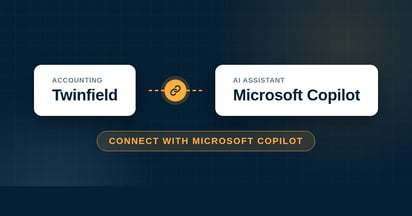
Connect your Twinfield administration to ChatGPT and ask questions about your bookkeeping in plain language. From a VAT overview to a draft sales transaction, you ask for it and ChatGPT pulls it straight from your administration. You need a paid ChatGPT plan with Developer Mode and set up the connector in a few minutes.
Do you want to connect Twinfield with ChatGPT? With a paid ChatGPT subscription that includes Developer Mode, you can set up the connector in a few minutes. From then on you simply query your Twinfield administration in the chat and get answers based on your current figures.
On this page you will see step by step how to connect ChatGPT with Twinfield, which questions you can ask and what to watch out for. Looking for an explanation of the connector itself, separate from an AI tool? You will find it in How does the Twinfield AI Connect connector work?
Does ChatGPT work with Twinfield?
Yes. ChatGPT works with Twinfield through Twinfield AI Connect, a connector based on MCP (Model Context Protocol). This open protocol lets an AI assistant securely read along in external software. You need a paid ChatGPT subscription with Developer Mode, after which you add the connector once and work from the chat.
Connecting Twinfield with ChatGPT, step by step
This is the connector link you add to ChatGPT:
https://mcp-twinfield.iwebdevelopment.com
Requires a paid ChatGPT subscription (Plus, Pro, Business, Enterprise or Education) and only works in ChatGPT on the web, not in the mobile app. On Plus and Pro you turn on Developer Mode yourself. With Business only admins and owners add the connector and publish it for the team; with Enterprise and Education an administrator gives you access. Developer Mode is still in beta.
1Go to Settings → Security and login and turn on Developer Mode. Confirm the message.
2Go to Settings → Plugins (or open chatgpt.com/plugins directly).
3Click the plus button to create a developer-mode app.
4Give the connector a name (for example Twinfield AI Connect) and paste the connector link into the server URL field. Choose OAuth as authentication.
5Click Create. You are redirected to Twinfield. Log in and click Authorise. You only need to do this once.
6Open a new chat, choose Developer mode via the + menu, turn on Twinfield AI Connect and ask your first question.
Tip: mention in your question that you want to use Twinfield AI Connect, then ChatGPT picks the right source straight away.
What can you ask ChatGPT about your bookkeeping?
Once the connector is in place, you talk to your Twinfield administration in plain language. ChatGPT retrieves your figures and can, with your approval, also prepare actions. For example:
"Compare my result this year with last year and show the difference."
"Which general ledger accounts had the largest movements this period?"
"Give me an overview of my outstanding creditors by due date."
"Prepare this purchase invoice as a draft transaction in the correct day book."
So it reads and prepares, and you stay in control: a transaction or invoice is first set up as a draft and only posted definitively in Twinfield after your approval. You will find the full overview of what the connector can do in How does the Twinfield AI Connect connector work?
Is the connector with ChatGPT secure?
Your administration stays in Twinfield. You authorise through Twinfield's own secure login, so your password never reaches ChatGPT and you can withdraw access at any time. You can read more about security and privacy in the general connector article.
Prefer a different AI assistant?
Twinfield AI Connect works with more than just ChatGPT. Would you like a different assistant? Read the instructions for Claude, Microsoft Copilot, Gemini or Perplexity.
Frequently asked questions
Yes. The connector runs through Developer Mode, which is only available on the paid plans: Plus, Pro, Business, Enterprise or Education. On a free account you cannot add your own connector. Developer Mode is still in beta; on Business and Enterprise an administrator switches this on once.
You need to turn the connector on for each conversation through the + menu under Developer mode, even if it is already connected. After that, mention in your question that you want to use Twinfield AI Connect, otherwise ChatGPT sometimes picks a different source. If it keeps getting stuck, open a new chat or disconnect the app once in your settings and connect again.
Yes, besides reading along ChatGPT can prepare actions, such as a sales transaction or a payment reminder. These are always set up as a draft first and only booked into Twinfield for good after your approval. So you stay in control of every change.
No. You authorise the connector through Twinfield's own secure login, so your password stays there. Your administration remains in Twinfield and you can revoke the access again at any time.
You start with a free 30-day trial, so you can test the connector in your own administration first. After that you choose a plan that suits your usage. Contact iWebDevelopment for the current rates.







.png)








.png?width=46&height=46&name=vecteezy_artificial-intelligence-ai-processor-chip-vector-icon-symbol_6662139%20(1).png)