






.png)








Setting up our bank connector: operational within a day
Setting up a bank connector sounds technical. In reality it takes 15 to 30 minutes. Explained step by step.
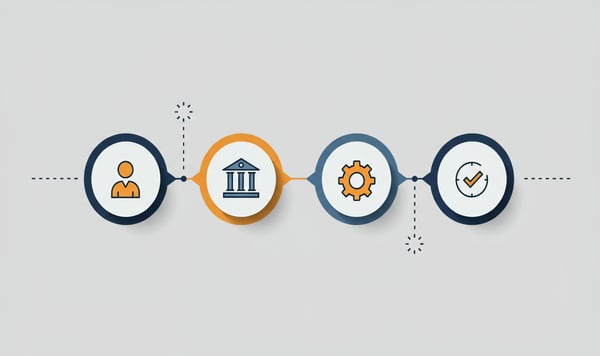
Setting up a bank connector sounds like something you need an IT department for. It's not that bad. Most users are up and running within 15 to 30 minutes. No technical knowledge, no installation on your computer, no help from a consultant.
In this article we walk through the process step by step.
What do you need?
Before you start, make sure you have the following at hand:
- An account with Exact Online, Twinfield or AFAS. The bank connector works with these three packages.
- Access to your online banking. You need your login details for the PSD2 authorisation.
- A device for two-factor authentication. Think of your banking app, a TAN calculator or a QR scanner.
That's all. No software to download, no plugins to install.
Step 1: Create an account with iWebDevelopment
Go to our website and create an account. You enter your company name and email address, choose a password, and your account is active.
Time required: 2 minutes.
Step 2: Authorise your bank via PSD2
This is the most important step. You give iWebDevelopment permission to retrieve your bank transactions. This happens via PSD2, the European standard for secure banking data exchange.
The process differs slightly per bank:
ABN AMRO: You are redirected to the ABN AMRO environment. There you log in with your usual method (e.dentifier or mobile app) and confirm the permission.
ING: ING asks for your username and a TAN code from the ING app. After confirmation the connector is active.
Rabobank: Rabobank uses a QR code that you scan with the Rabo app. Two taps on your phone and you're done.
Other banks: The principle is the same. You log in at your bank, confirm the permission, and the connector is set. With more than 2,300 supported banks this works almost identically everywhere.
Time required per bank: 3 to 10 minutes.
Do you have multiple bank accounts? Repeat this step for each account. Authorising five accounts takes around 20 to 30 minutes in total.
Step 3: Connect your accounting software
Now you connect iWebDevelopment to your accounting package. With Exact Online this goes via OAuth: you log in at Exact Online, select your administration and grant permission.
The system automatically recognises which bank accounts you already have in your accounting and connects these to the correct PSD2 connection. In most cases you don't need to configure anything manually here.
Time required: 5 minutes.
Step 4: First synchronisation
After connecting, the first synchronisation runs automatically. Your bank transactions from the past few days are retrieved and placed in your accounting.
Depending on the number of transactions this takes a few seconds to a couple of minutes. You see the transactions appear directly in your accounting package.
Time required: 1 to 5 minutes.
Total time investment
| Step | Active time |
|---|---|
| Create account | 2 minutes |
| Authorise bank (per bank) | 3-10 minutes |
| Connect accounting software | 5 minutes |
| First synchronisation | 1-5 minutes |
| **Total (1 bank)** | **15-20 minutes** |
| **Total (3 banks)** | **20-30 minutes** |
Within half an hour your bank transactions flow into your accounting automatically.
What happens after installation?
From now on the connector synchronises automatically. Every day your new bank transactions are retrieved and placed in your accounting software. You don't have to do anything for that.
The matching function of your accounting package does the rest. Based on amounts, payment references and IBAN numbers, transactions are automatically linked to the correct invoices or bookings. The average match rate is above 90%.
The transactions that are not matched automatically appear in your work list. You handle those manually, but there are considerably fewer than before.
Prefer help with the installation?
Some users would rather not install it themselves. We understand that. That's why we offer an installation service. One of our staff goes through the entire process with you, via a video call or by phone.
The installation service costs nothing extra for new customers. You schedule a time that suits you, and we make sure everything is set up correctly.
Frequently asked questions
Is it safe to connect my bank?
Yes. The connector runs via PSD2, the European standard for secure banking data exchange. We only get read access to your transactions. We can never make payments or transfer money. In addition, we are ISO 27001 certified.
What if I switch banks?
You remove the old bank connector and add the new bank. That takes the same 10 minutes as the original installation. Your historical data in the accounting simply stays in place.
Can I cancel the connector at any time?
Yes, monthly. No notice period, no penalty, no questions. You stop the connector via your account and that's it.
Does this also work if I don't use Exact Online?
Our bank connector works with Exact Online, Twinfield and AFAS. Do you use a different accounting package? Get in touch with us. We regularly expand our range.
How long does it take before transactions are visible?
Bank transactions usually appear in your accounting software within a few hours. Most banks make data available once or twice a day via their PSD2 API.
Get started
The threshold is low. No annual contract, no implementation project, no technical requirements. Within a day you have automatic bank import in your accounting, from 7.50 euros per month.
Ready to begin? Start your free trial period →