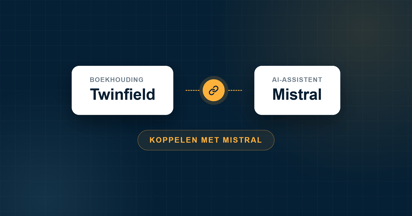
Connect your Twinfield administration to Grok and ask questions about your bookkeeping in plain language. From cost centres to the VAT reconciliation, you ask and Grok pulls it straight from your administration. This works on any Grok account, including a free account.
Want to connect Twinfield to Grok? In Grok, the AI assistant from xAI, you add your own connector on any account. Twinfield AI Connect is set up in a few minutes. From then on you query your Twinfield administration in the chat and get answers from your current figures.
Below you can read how to connect Grok to Twinfield, which questions you can ask and what to watch out for. Looking for the explanation of the connector itself, separate from an AI tool? You will find it in How does the Twinfield AI Connect connector work?
Does Grok work with Twinfield?
Yes. Grok works with Twinfield through Twinfield AI Connect, a connector based on MCP (Model Context Protocol), the open standard that connects AI to your own tools and data. Grok calls this a custom connector. You add it on grok.com, authorise once with Twinfield and then ask your questions in the chat.
Connecting Twinfield to Grok, step by step
This is the connector link you add to Grok:
https://mcp-twinfield.iwebdevelopment.com
Works on any Grok account, including a free account. If you use Grok Business or Enterprise, an administrator first adds the connector for your organisation.
1Go to grok.com/connectors.
2Click New Connector and choose Custom.
3Give the connector a name (for example Twinfield AI Connect) and paste the connector link into the server URL field. Click Add Connector.
4A Twinfield window opens. Log in and click Authorise. You only need to do this once.
5Start a new chat and ask your question. Grok uses the connector on its own as soon as your question is about your accounting.
Tip: if Grok keeps hanging after you log in, the login window was probably closed too early. Cancel and add the connector again. Do you get an answer, but not from your own figures? Then mention Twinfield AI Connect literally in your question.
What can you ask Grok about your accounting?
As soon as the connector is active, you query your Twinfield administration directly. Grok finds the answer in your figures and, after your approval, can also prepare something for you. A few examples:
"Which cost centres are higher this quarter than last quarter?"
"Does the VAT for the past quarter match the general ledger?"
"Which debtors have the highest outstanding balance?"
"Create a draft sales invoice for this customer."
If you want Grok to prepare something, you first see a proposal in the chat. Only after your approval is it processed in Twinfield. You will find the complete overview of what the connector can do in How does the Twinfield AI Connect connector work?
Is the connector with Grok secure?
Your accounting data stays in Twinfield. Authorisation runs through Twinfield itself, so you do not share your password with Grok and you can revoke access whenever you want. You can read more about security and privacy in the general connector article.
Please note: Grok uses conversations by default to improve its models. If you work with financial data, turn this off via Settings → Data Controls by disabling Improve the model.