





.png)








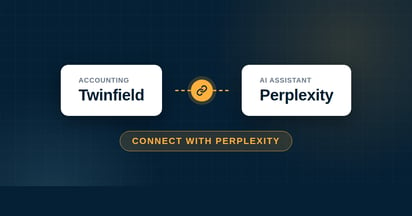
Connect your Twinfield administration to Claude and ask your bookkeeping questions in plain language. From a revenue overview to a cost breakdown per cost center, you ask and Claude pulls it straight from your administration. The connector works on every Claude plan, including free, and you set it up in a few minutes.

.png?width=46&height=46&name=vecteezy_artificial-intelligence-ai-processor-chip-vector-icon-symbol_6662139%20(1).png)
Do you want to connect Twinfield with Claude? With iWeb's MCP connector you link your Twinfield administration to Claude in just a few minutes, on any subscription and on the free account too. After that you simply ask your bookkeeping a question in the chat and Claude answers from your current Twinfield figures.
Below you can read step by step how to connect Claude with Twinfield, which questions you can ask and what to look out for. Do you want the explanation of the connector itself, separate from a specific AI tool? You will find it in How does the Twinfield AI Connect connector work?
Does Claude work with Twinfield?
Yes. Claude connects to Twinfield through Twinfield AI Connect, a connector based on MCP (Model Context Protocol). MCP is the open standard that lets AI assistants access data in other software safely. You install the app in Claude, authorise once with Twinfield and then ask your questions directly in the chat.
Handy with Claude: the connector works on any subscription, including the free account. For many users this makes Claude the most accessible way to try out Twinfield AI Connect.
Connecting Twinfield with Claude, step by step
You install the connector as an app in Claude.

What can you ask Claude about your bookkeeping?
With the connector active you query your Twinfield administration in plain language. Claude reads your figures and can, with your approval, also prepare things for you. A few examples:
So you can both retrieve and prepare, with you at the wheel. Claude first sets up a sales transaction or reminder as a draft, and you approve it before it goes into Twinfield for good. Want the complete overview of what the connector can do? You will find it in How does the Twinfield AI Connect connector work?
Is the connector with Claude secure?
Your administration stays in Twinfield. The authorisation runs through Twinfield itself, so you do not share a password with the AI tool and you can always revoke access again. Read more about security and privacy in the general connector article
Prefer a different AI assistant?
The connector works with more than just Claude. Do you want to use a different assistant? Then check the step-by-step instructions for ChatGPT, Microsoft Copilot, Gemini or Perplexity.